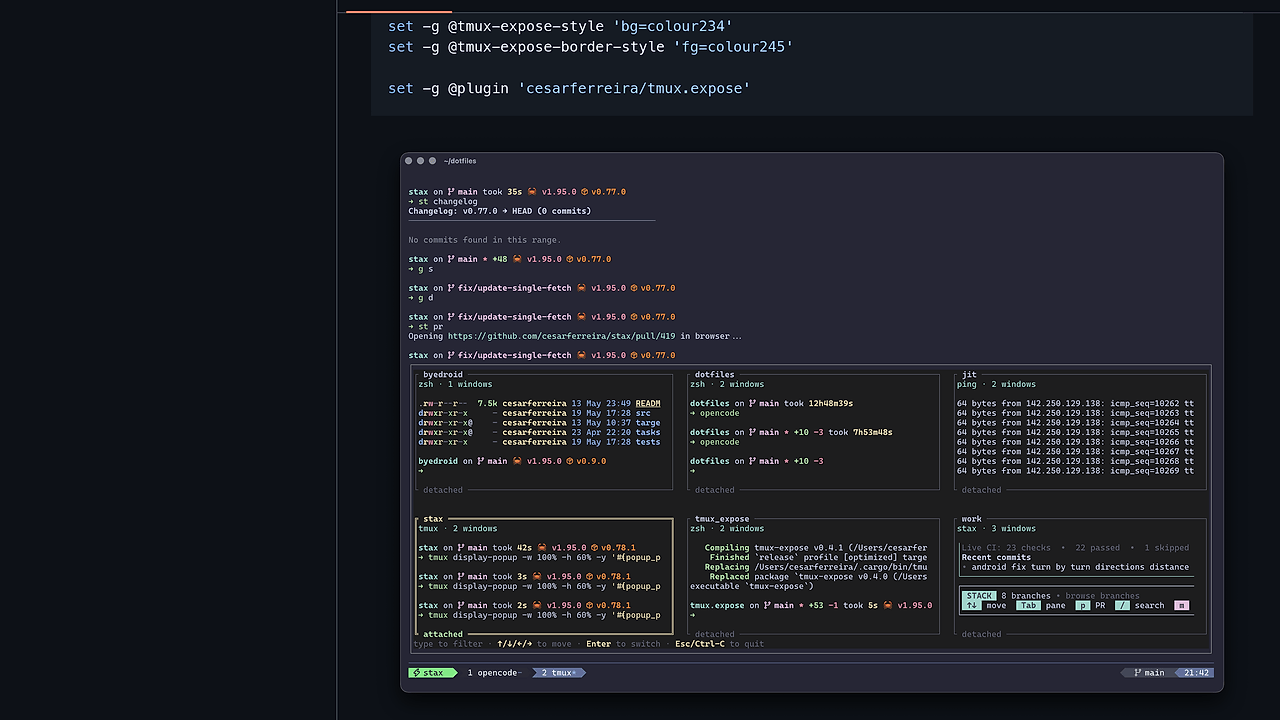
What Is tmux.expose?
tmux.expose is a Rust terminal UI built by Cesar Ferreira for tmux users who want visual session switching instead of scrolling through names, and it is one of the best TUI Tools for tmux power users, terminal-first developers, and ops engineers. It renders every tmux session as a live text thumbnail, preserves ANSI colors, and refreshes previews on a 500 ms loop so the grid stays current while you work.
The result is closer to Mission Control than to a plain session picker. If you live in tmux all day, tmux.expose removes the context-switch cost of guessing which session holds the right service, branch, or incident workspace.
Quick Overview
| Attribute | Details |
|---|---|
| Type | TUI Tools |
| Best For | tmux power users, terminal-first developers, and ops engineers |
| Language/Stack | Rust, tmux, terminal UI, ANSI color rendering |
| License | MIT |
| GitHub Stars | N/A as of Feb 2026 |
| Pricing | Open-Source |
| Last Release | N/A |
Who Should Use tmux.expose?
- People juggling many tmux sessions who need a visual way to pick the right workspace without reading every session name.
- Backend developers and SREs who keep separate sessions for local services, logs, deploys, and incident response.
- Terminal-only operators who want a popup-first workflow and do not want to leave tmux for a GUI switcher.
- Keyboard-driven users who prefer arrow keys,
hjkl, andEnterover mouse-heavy session management.
Not ideal for:
- Users who rarely open more than two sessions and do not need a visual session grid.
- Teams that standardize on GUI-first workflows and never use tmux popups or terminal multiplexers.
- People who want project scaffolding or session creation automation rather than session browsing.
Key Features of tmux.expose
- Live session thumbnails — tmux.expose shows each tmux session as a text preview instead of a bare label. That matters when session names are generic, truncated, or out of date.
- ANSI color preservation — the previews keep tmux colors, which helps when you use color-coded panes for app logs, shells, and long-running tasks.
- Fast keyboard navigation — move with arrow keys or
hjkl, filter with typing, and switch withEnter. Quit cleanly withEscorCtrl-C. - tmux popup integration — it opens with
tmux display-popup, so the UI stays inside your current terminal session instead of spawning a separate window manager. - TPM plugin support — install it through [TMUX Plugin Manager] workflow and bind it to
Alt+eor a custom key. That makes tmux.expose a low-friction part of your normal tmux config. - Custom layout controls — tune
--columns,--thumbnail-width, and--refresh-intervalto fit dense session sets or larger previews. The default grid is balanced, but the CLI lets you force a layout that matches your monitor and font size. - Mouse and search support — mouse clicks jump directly to a session, and fuzzy name filtering helps when the session list is long. That gives you both keyboard speed and occasional point-and-click convenience.
tmux.expose vs Alternatives
| Tool | Best For | Key Differentiator | Pricing |
|---|---|---|---|
| tmux.expose | Visual tmux session switching | Live text thumbnails with ANSI colors and popup-first terminal UX | Open-Source |
| tmux-sessionizer | Quick session picking from project folders | Fzf-style text selection and scriptable project discovery | Open-Source |
| MiniVim | Terminal-native editing workflows | Editor-centric navigation inside the terminal, not session switching | Open-Source |
| browse all TUI Tools | Comparing terminal UIs | Wider catalog of terminal-first utilities in one place | Varies |
Pick tmux-sessionizer when you care more about project discovery than previewing existing panes. It is better for creating or locating sessions from directories, while tmux.expose is better when you already have sessions running and want to recognize them visually.
Pick MiniVim when the problem is editing, not multiplexing. Pairing a terminal editor with tmux.expose makes sense for people who stay inside the shell for hours, but the tools solve different layers of the workflow.
Use the broader TUI Tools catalog if you are comparing terminal interfaces across categories. tmux.expose is specialized for tmux session switching, so a generic TUI browser is useful only if you are still deciding where your terminal workflow should live.
How tmux.expose Works
tmux.expose is built around a simple abstraction: each tmux session becomes a thumbnail in a grid, and the grid is refreshed on a timer so the previews stay current. The core design decision is visual indexing rather than textual searching, which helps when session names are reused, abbreviated, or meaningless under incident pressure.
The runtime is intentionally small and terminal-native. You can run tmux.expose directly inside tmux, or you can launch it through tmux display-popup so it appears as an overlay without changing your current window layout. That design keeps the tool compatible with existing tmux keymaps, plugin managers, and popup styles.
# getting started example
cargo install tmux-expose
tmux-expose --columns 2 --thumbnail-width 48
The first command installs the binary from crates.io, and the second starts the TUI with a fixed two-column layout and wider previews. If you prefer the tmux-native flow, you can run the same binary inside a popup and use the built-in search and arrow-key navigation to switch sessions immediately.
A typical tmux.expose setup also leans on tmux configuration instead of app-specific state. That means the tmux plugin can bind a key like Alt+e, open a popup with custom width and height, and pass the toggle key through the environment so the same binding can close the popup cleanly.
Pros and Cons of tmux.expose
Pros:
- Visual session recognition reduces the error rate when session names are vague or duplicated.
- Rust binary keeps the tool lightweight and easy to distribute through
cargo install. - tmux popup support fits naturally into terminal workflows without requiring a separate windowing layer.
- ANSI-aware previews preserve color cues that matter in real sessions, especially for logs and multi-pane dashboards.
- Configurable grid layout lets you tune density with
--columnsand--thumbnail-widthinstead of accepting a fixed view. - Plugin-manager friendly installation works cleanly with TPM and custom key bindings.
Cons:
- It only solves session selection; it does not create sessions, scaffold projects, or manage dotfiles.
- It depends on tmux and is not useful if your team uses another multiplexer or a GUI terminal manager.
- Preview quality is limited by terminal rendering; it is not a full screenshot-based workspace switcher.
- Highly visual workflows can be slower than a direct fuzzy jump when you already know the exact session name.
- The UI is terminal-specific and does not depend on macOS APIs, so system-level gesture hooks still require external automation tools.
Getting Started with tmux.expose
The fastest install path is crates.io, and the app is ready to run immediately after the binary is on your PATH.
cargo install tmux-expose
tmux-expose
If you want it inside a tmux popup, launch it with tmux directly.
tmux display-popup -w 100% -h 100% -E "tmux-expose"
After startup, tmux.expose shows a grid of current sessions, lets you filter by typing, and switches to the highlighted session with Enter. If you want a denser or more spacious layout, add --columns 2 or --thumbnail-width 48 before you start using it in daily work.
For a persistent workflow, add the TPM snippet to your tmux config and bind a key that matches how often you switch sessions. The only real setup choice is whether you want full-screen popups, half-screen bottom drawers, or a small anchored panel for quick jumps.
Verdict
tmux.expose is the strongest option for visual tmux session switching when you live inside tmux and need to identify sessions by content instead of names. Its best strength is the live thumbnail grid with ANSI-aware previews, and its main caveat is that it solves browsing, not session creation. If you already run a terminal-first workflow, install it.