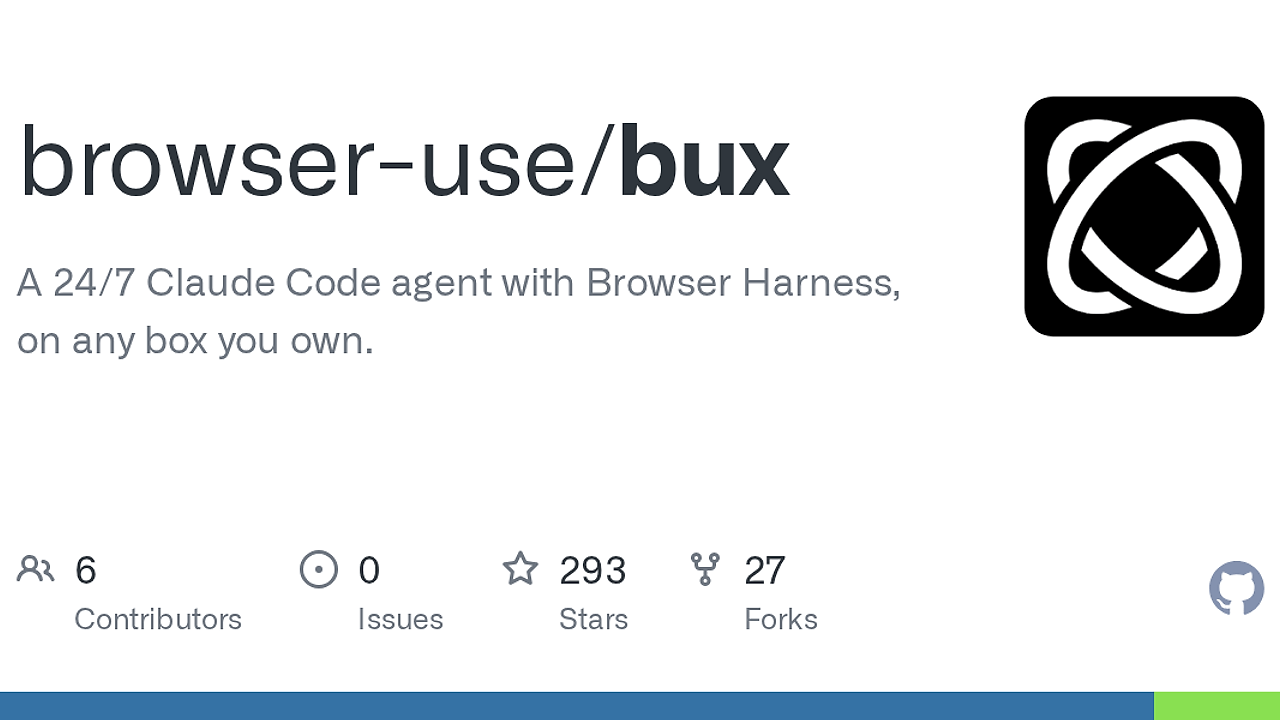
What Is Browser Use Box?
Browser Use Box is an open-source stack from browser-use that turns a remote Ubuntu box into a persistent Claude Code workstation with a real Chromium session, Telegram control, and reboot-safe state. Browser Use Box is one of the best Browser Automation tools for developers, and the repo says a blank VPS can be ready in about three minutes. It is built for developers, indie hackers, and CTOs who need an agent that can keep cookies, logins, and chat history alive instead of starting from scratch on every run.
This is not a toy wrapper around a single browser call. Browser Use Box wires Claude Code into a systemd-managed host, then uses browser-harness and Browser Use Cloud to keep the browser session available over a real CDP connection. That makes it useful for login-heavy workflows like email triage, admin portals, internal tools, and any task where session persistence matters more than raw model output.
Quick Overview
| Attribute | Details |
|---|---|
| Type | Browser Automation |
| Best For | Developers |
| Language/Stack | Ubuntu 22.04+, Claude Code, Chromium, browser-harness, systemd, Telegram bot, Bash |
| License | MIT |
| GitHub Stars | N/A as of Feb 2026 |
| Pricing | Open-Source |
| Last Release | N/A |
Who Should Use Browser Use Box?
- Solo indie hackers shipping admin-heavy MVPs who need a real browser agent without building session persistence, login recovery, or a custom control plane.
- Platform and ops engineers who want a cheap VPS to run browser tasks against dashboards, billing portals, inboxes, and internal tooling on a schedule.
- Founders and CTOs who want Claude Code to act on web apps while keeping state on disk instead of relying on ephemeral cloud sessions.
- Automation engineers who already use CLI workflows and want a terminal-first browser worker that can be reached over SSH, Telegram, or a local web terminal.
Not ideal for:
- Teams that cannot tolerate third-party API dependencies, because Browser Use Box still depends on Claude and Browser Use Cloud for the browser backend.
- Air-gapped or heavily restricted environments that do not allow an Ubuntu VPS, outbound browser traffic, or browser-based authentication flows.
- Simple API-only workflows where a direct HTTP client or headless script is cheaper than a full browser session.
Key Features of Browser Use Box
- Persistent Chromium session — Browser Use Box keeps a real browser profile alive through browser-harness, so cookies and logins survive between runs. That matters for Gmail, Google Workspace, CRMs, and any portal with sticky auth.
- Systemd-managed services — The installer creates small services such as
bux-browser-keeperandbux-ttyd, which means the stack comes back after reboot without manual babysitting. This is the difference between a demo and something you can leave on a VPS. - Telegram bot control — Pass
TG_BOT_TOKENduring install and Browser Use Box can be driven from Telegram. That gives you a low-friction command channel when SSH is awkward or when you want lightweight status updates on mobile. - Live view handoff for auth walls — When Claude hits a login wall, 2FA prompt, or CAPTCHA, Browser Use Box can surface a live view URL and wait for a human. That is the right failure mode for real-world automation because it avoids brittle credential stuffing.
- Persistent agent state in
/home/bux— The repo keeps skills, cookies, and chat history on disk under/home/bux. Reboots do not wipe context, so the agent behaves like a long-lived workstation rather than a stateless job runner. - One-command bootstrap — The install path is a single
curl | bashflow aimed at Ubuntu 22.04+ boxes. If you can rent a $5 VPS from Hetzner, DigitalOcean, or similar, you can stand up the stack fast. - Optional managed path — The project also points to a managed cloud offering at
cloud.browser-use.comfor people who want the same software without running their own machine. That keeps the self-hosted repo relevant while still giving non-ops users an exit.
Browser Use Box vs Alternatives
| Tool | Best For | Key Differentiator | Pricing |
|---|---|---|---|
| Browser Use Box | Self-hosted browser automation with Claude and persistent logins | Real Chromium on your own VPS, plus Telegram and live-view recovery | Open-Source |
| OpenSwarm | Coordinating multiple agents across tasks | Better when you need orchestration more than a dedicated browser workstation | Open-Source |
| Claude Code Canvas | Interactive Claude Code workflows and structured prompt work | Better for authoring and controlling prompts than running a remote browser host | Open-Source |
| djevops | Deployment and infra automation | Better for ops workflows that do not need a persistent browser profile | Open-Source |
Pick Browser Use Box when the job is browser-first and the session must survive reboots, CAPTCHA prompts, and login gates. Pick OpenSwarm when you care more about multi-agent coordination than a dedicated browser seat, and pick Claude Code Canvas when the problem is prompt structure rather than remote execution.
If your workflow is mostly deployment plumbing, djevops is the cleaner fit because it targets infra automation directly. Browser Use Box is the better choice when the web app itself is the system of record and the browser is the only sane interface.
How Browser Use Box Works
Browser Use Box runs as a small host stack around Claude Code, with state and services managed by systemd. The browser worker talks to a real Chromium session through browser-harness, and that session connects back to Browser Use Cloud over CDP via WSS, which is what makes the browser feel persistent instead of ephemeral.
The architecture is deliberately boring. A shell installer sets up the box, the bux user owns the persistent state under /home/bux, ttyd exposes a web terminal on localhost, and a Telegram service gives you a second control surface when SSH is inconvenient. This is a sane design for a single-box agent because it minimizes moving parts while keeping the browser, the model, and the human recovery path separated.
A typical bootstrap looks like this:
curl -fsSL https://raw.githubusercontent.com/browser-use/bux/main/install.sh | sudo BROWSER_USE_API_KEY=bu_xxx bash
sudo systemctl is-active bux-browser-keeper bux-ttyd
sudo -iu bux claude /login
The first command installs the stack, the second verifies that the browser keeper and terminal service are alive, and the third starts Claude's OAuth flow under the bux user. After that, you can ask Claude to visit a URL, inspect the page, fill forms, or summarize inboxes while the session state remains on disk.
Pros and Cons of Browser Use Box
Pros:
- Real browser state — Cookies, auth cookies, and session history persist across runs because the browser is not disposable.
- Cheap to host — A $5 Ubuntu VPS is enough for the documented path, which keeps the operational cost low for personal automation.
- Human-in-the-loop recovery — The live view handoff handles CAPTCHA and 2FA cleanly instead of failing hard.
- Multiple access paths — SSH, Telegram, and
ttydgive you options for control and inspection. - Simple failure domain — One box, a few services, and a single persistent home directory are easier to debug than a distributed automation mesh.
Cons:
- Depends on external services — Browser Use Box still needs Claude access and Browser Use Cloud, so it is not a fully offline stack.
- Browser automation is brittle by nature — UI changes, iframe shifts, and anti-bot defenses can still break tasks.
- Linux-hosted only in practice — The documented path assumes Ubuntu 22.04+, so macOS and Windows are not first-class hosts.
- Some ops knowledge required — You need to understand SSH, systemd, and VPS provisioning to run it yourself.
Getting Started with Browser Use Box
Start by renting an Ubuntu 22.04+ VPS and generating a Browser Use Cloud API key. If you want Telegram control, create a bot token from @BotFather before install so the first boot can wire everything in one pass.
curl -fsSL https://raw.githubusercontent.com/browser-use/bux/main/install.sh | sudo BROWSER_USE_API_KEY=bu_xxx TG_BOT_TOKEN=123:abc bash
sudo systemctl status bux-browser-keeper bux-ttyd
sudo -iu bux claude /login
After the install finishes, systemctl should report the browser keeper and web terminal as active, and claude /login will complete the OAuth step under the bux user. Once that is done, Browser Use Box can start handling browser tasks from Telegram, SSH, or the local terminal without rebuilding session state on each run.
Verdict
Browser Use Box is the strongest option for self-hosted Claude browser automation when you need persistent logins on a cheap VPS. Its biggest strength is durable Chromium state with simple systemd-backed recovery, and its main caveat is the dependency chain on Claude and Browser Use Cloud. If you want a browser-native agent host instead of another ephemeral script, this is the one to run.