What Is ai-usagebar?
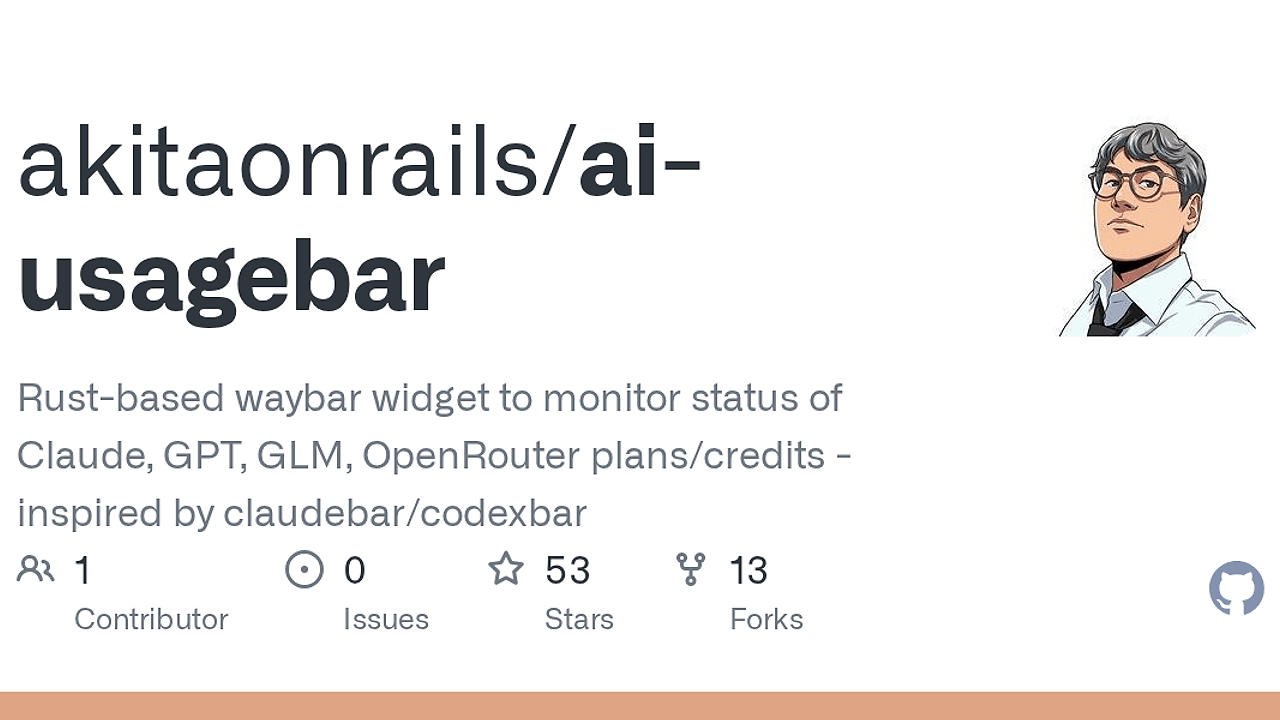
ai-usagebar is a Rust-based Waybar widget and tabbed TUI built by akitaonrails for developers and power users who need live AI quota telemetry. It tracks usage across four vendors — Anthropic Claude, OpenAI Codex/ChatGPT, Z.AI (GLM), and OpenRouter — and the TUI auto-refreshes every 60 seconds. ai-usagebar is one of the best CLI Tools for developers and power users tracking AI plan usage across multiple vendors.
The tool is a direct Rust port of claudebar, but it expands the coverage beyond Claude and replaces the original shell-script style implementation with a testable codebase. That matters if you want one bar item, one terminal binary, and one config file instead of a pile of vendor-specific scripts glued together with brittle parsing.
Quick Overview
| Attribute | Details |
|---|---|
| Type | CLI Tools |
| Best For | Developers and power users tracking AI plan usage across Claude, OpenAI, Z.AI, and OpenRouter |
| Language/Stack | Rust, ratatui, Waybar, TOML, JSON |
| License | N/A |
| GitHub Stars | N/A |
| Pricing | Open-Source |
| Last Release | N/A |
Who Should Use ai-usagebar?
- Linux desktop users on Waybar who want a single status item that can cycle across vendors without writing custom bar scripts.
- Indie hackers on multiple AI subscriptions who need to see weekly or session limits before starting a long coding session.
- Platform engineers and team leads who run Wayland desktops, tmux panes, or SSH sessions and want a low-friction usage monitor that does not require a browser.
- Rust-friendly tinkerers who prefer a maintainable binary with tests, a real CLI, and explicit config over opaque automation.
Not ideal for:
- Teams that need centralized billing dashboards or org-level analytics instead of local usage telemetry.
- Users who never run a terminal emulator or Waybar and only want a web UI.
- People who want fully vendor-agnostic metrics rather than provider-specific quota screens and auth paths.
Key Features of ai-usagebar
- Per-vendor Waybar modules — ai-usagebar emits the same JSON shape as claudebar, so existing Waybar config can stay mostly unchanged. That makes migration cheap when you already have custom
exec, tooltip, and refresh wiring. - Tabbed TUI with ratatui — the
ai-usagebar-tuibinary gives you Tab andh/lnavigation, per-tab refresh, and a 60-second auto-refresh cycle. It is useful in terminals like Kitty, Alacritty, Foot, Ghostty, or plain SSH sessions. - Scroll-to-cycle workflow — one bar item can cycle through enabled vendors with
on-scroll-upandon-scroll-down. That reduces bar clutter while still keeping all four vendors one wheel click away. - Config-driven primary vendor —
[ui] primarysets the default vendor for both the widget and the TUI. If you live in Claude most of the day, ai-usagebar opens there first without extra flags. - Drop-in claudebar compatibility — the tool preserves flags like
--icon,--format,--tooltip-format,--pace-tolerance,--format-pace-color,--tooltip-pace-pts,--color-*, and{placeholders}. That compatibility matters if you are upgrading an existing bar setup and do not want to rewrite templates. - Atomic cache writes plus flock — multi-monitor Waybar instances can read the same data without stampeding the API or stepping on each other’s cache files. That is the kind of detail that keeps desktop widgets from turning into rate-limit generators.
- Local testing modes —
--prettyrenders ANSI-colored output for terminals, while--watch Nre-renders on an interval. Those options make it easy to inspect formatting, compare vendors, and catch layout regressions before wiring the output into Waybar. - Live smoke tests —
make smokehits the real undocumented endpoints and surfaces schema drift early. That is a practical guardrail when the upstream vendor payloads are not stable.
ai-usagebar vs Alternatives
| Tool | Best For | Key Differentiator | Pricing |
|---|---|---|---|
| ai-usagebar | Multi-vendor AI quota monitoring in Waybar and terminal | Rust rewrite with four vendors, TUI mode, atomic caching, and claudebar compatibility | Open-Source |
| claudebar | Claude-only usage display | Original minimal script-style implementation with narrower vendor coverage | Open-Source |
| Claude Context Mode | Claude-heavy workflows that need context switching | Focuses on context management, not quota telemetry | Open-Source |
| OpenSwarm | Multi-agent orchestration | Coordinates agents and workflows rather than monitoring plan usage | Open-Source |
Pick claudebar if you only care about Claude and want the smallest possible footprint. Pick ai-usagebar when you need OpenAI, Z.AI, and OpenRouter in the same interface and still want Waybar compatibility.
Claude Context Mode is the better companion if your bottleneck is prompt state, not quota visibility. OpenSwarm makes more sense when you are coordinating agents and tasks, while ai-usagebar stays focused on telemetry and local status reporting.
If you want a Claude-centric editor workflow, Claude Code Canvas pairs well with ai-usagebar because one tool manages the coding surface while the other keeps usage limits visible. That combination is useful for anyone who alternates between agentic coding and quota-aware session planning.
How ai-usagebar Works
ai-usagebar reads vendor credentials from the local machine, maps each provider into a shared status model, and renders that state either as Waybar JSON or as a terminal UI. Anthropic and OpenAI use OAuth credentials already written to disk by their official CLIs, while Z.AI and OpenRouter use API keys from environment variables or inline TOML config. The design keeps vendor-specific auth paths isolated so the output layer stays simple.
The core architecture is a Rust binary with a small adapter per vendor, a common placeholder system, and a cache layer protected by flock. That combination matters because it avoids duplicate refreshes on multi-monitor desktops and keeps multiple bar instances from hammering the same upstream API at once. The output path is deterministic: read config, resolve credentials, fetch usage, normalize fields, then emit either JSON or ratatui widgets.
cargo build --release
ai-usagebar --vendor anthropic --json
ai-usagebar-tui
The first command compiles the binary, the second prints machine-readable Waybar output, and the third opens the tabbed TUI in your terminal. If you are wiring it into Waybar, the JSON output is what the bar consumes; if you are debugging formatting or checking your quotas interactively, the TUI is the faster path.
Pros and Cons of ai-usagebar
Pros:
- Four vendor integrations in one binary reduce the need for separate scripts or separate bar modules.
- Waybar-friendly JSON output makes the tool easy to drop into existing Wayland desktop setups.
- Standalone TUI works without Waybar, without a compositor, and inside SSH or tmux.
- Atomic cache and
flockprotection make concurrent refreshes safer on multi-monitor systems. - Drop-in compatibility with claudebar flags lowers migration cost for users who already tuned tooltip and pacing formats.
- Real smoke tests against live endpoints catch schema changes before they break your desktop widget.
Cons:
- Depends on vendor-specific auth state for Anthropic and OpenAI, so first-run setup still requires
claudeorcodex login. - Relies on undocumented endpoints for live usage data, which means upstream changes can break fields without notice.
- No centralized billing or org analytics are exposed in the scraped page, so it is not a finance or governance tool.
- Linux and Waybar bias means the core experience is best on Wayland desktops and terminal workflows.
- API-key vendors require careful config hygiene because inline secrets in TOML need restrictive file permissions.
Getting Started with ai-usagebar
cargo build --release
sudo make install
claude
codex login
ai-usagebar --json
ai-usagebar-tui
Build the binary, install it, then log in once with the vendor CLIs that provide OAuth credentials. After that, ai-usagebar --json can feed Waybar, and ai-usagebar-tui gives you an immediate terminal view without any desktop integration.
If you use Z.AI or OpenRouter, add ZAI_API_KEY or OPENROUTER_API_KEY in your shell or configure the keys in ~/.config/ai-usagebar/config.toml. The default config enables all four vendors, but you can disable any provider that you do not pay for or do not want to monitor.
Verdict
ai-usagebar is the strongest option for Linux users who want live quota visibility across Claude, OpenAI, Z.AI, and OpenRouter when they already live in Waybar or a terminal. Its biggest strength is drop-in claudebar compatibility with a cleaner Rust codebase; the caveat is reliance on vendor auth files and undocumented APIs. Recommend it if you need local usage telemetry, not billing analytics.